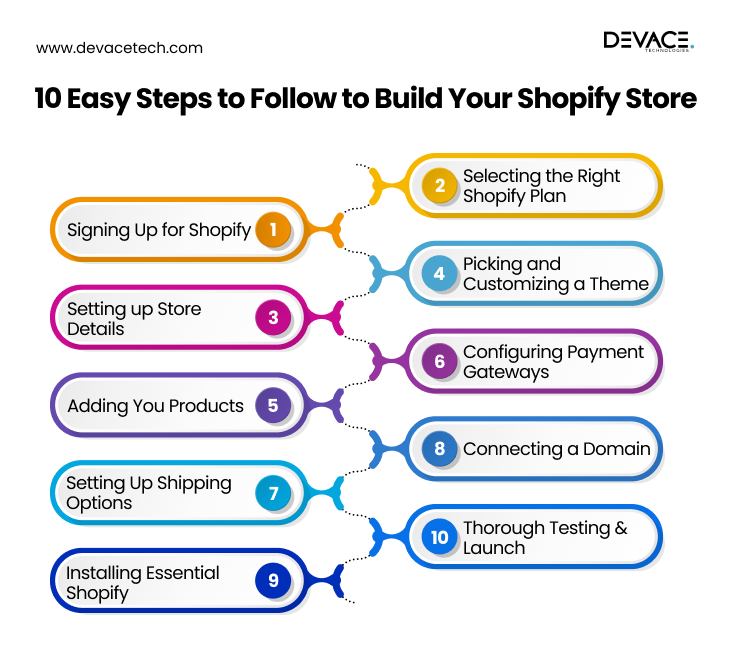
10 Easy Steps to Follow to Build Your Shopify Store
Let’s learn each step and see how to set up a Shopify store easily for your online brand:
1. Signing Up for Shopify
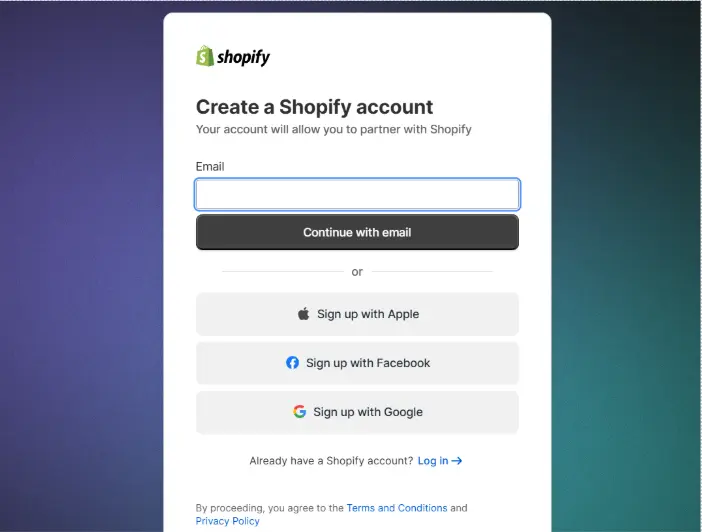
The first step to set up your Shopify store is to create an account on the Shopify site. It’s really simple and beginner friendly.
- Just go to the Shopify website and click on the “start free trial” icon.
- Then enter your credentials, such as store name, password, and email address (your store name is very important because it is also included in your default Shopify domain but don’t worry, it is easy to change or add a custom domain later.
- You have to answer Shopify’s setup questions like what kind of business you are running, what products you are already selling, or what products you plan to sell in your store. Through these questions, Shopify can easily customize your dashboard.
- Followed by entering your business, including your business address and country.
A Pro Tip: Pick a store name that’s easy, brandable, and memorable. Always avoid using overcomplicated names.
2. Selecting the Right Shopify Plan
Once you are signed up on the website, the next step is choosing the right Shopify plan. There are 4 main options available on the Shopify platform:
- Basic Shopify Plan (starting at $39/month); ideal for beginners, including 24/7 support, essential tools, and unlimited products.
- Shopify (starting from $105/month): A suitable option for growing brands and includes better features and transaction fees.
- Advanced Shopify Plan (starting from $399/month): Comes with advanced analytics and shipping discounts available for scaling up stores.
- Shopify Plus (Starts at $2000/month): It’s an enterprise level plan for big brands managing high-volume sales.

Shopify vs Shopify Plus plans, which one you should go for, totally depends on your brand’s needs.
Which plan should you go for?
If you are just starting a business, Basic Shopify is sufficient; you should upgrade only when your brand grows.
3. Setting up Store Details
After selecting a suitable plan for your store, it’s important to configure the store settings. You will see these options inside your Shopify admin dashboard:
- In the General Information section, add your business email, store name, and address. These details will appear on customer receipts and invoices.
- In the Currency section, select the currency you’ll take payments in (like USD, GBP, EUR, or others)
- For the Checkout Settings, decide if you want to enable guest checkout or require accounts. Also, customize checkout fields such as delivery notes, phone numbers etc.
- For the Taxes part, allow automatic tax calculations as per your region, as Shopify integrates with local or regional tax rules and regulations.
- In the Shipping & Delivery section, set your shipping rates, zones, and delivery methods.

A Pro Tip: Even if you are not planning to sell globally at the moment, consider a multi-currency checkout facility.
4. Picking and Customizing a Theme
Both free and paid themes are available on the Shopify Theme Store:
- You can browse themes by starting with a free option, like Sense, Dawn, or Refresh. These themes are responsive, modern, and customizable.
- Before the final application of themes, you can preview them.
- To change headers, footers, homepage banners, and product grids, you can use Shopify’s drag-and-drop editor to customize the Layout.
- To adjust color and fonts, you can match them with your brand identity.
- The next thing is to add branding and elements by uploading logos and adjusting store navigation.
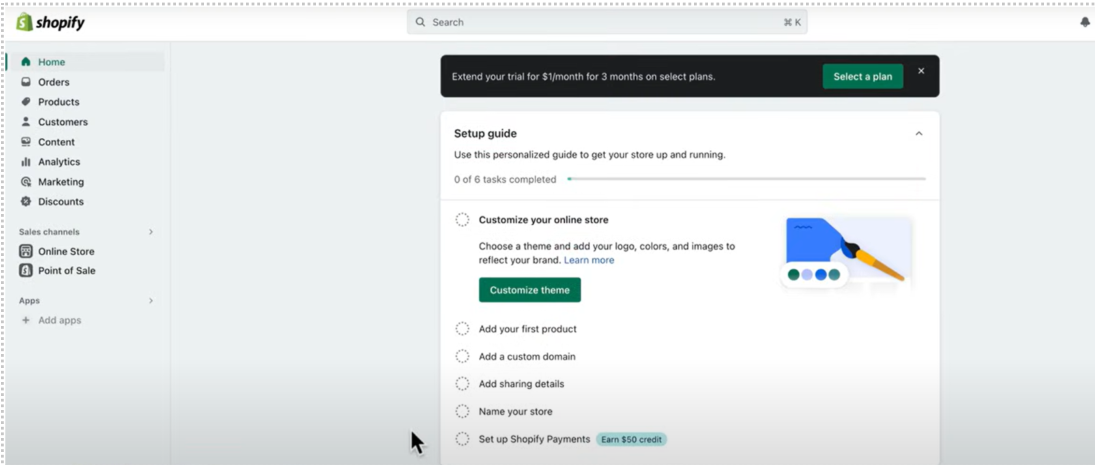

A Pro Tip: Always opt for a theme that is mobile optimized and focus on speed as well.👇
5. Adding You Products
Once theme selection is done, you can start adding your brand products. To add these products:
- Start by going to Products > Add Product.
- Then fill in the following details, such as:
your product title and keep it simple, descriptive, and easy to read for example:
Classic Yellow Summer Dress
Product description that explains key features, benefits, and usage, and adjusts keywords naturally.
- Also, upload high-quality images of products from multiple angles.
- Then add your product selling price, and compare it when you are running a discount.
- Enter your inventory details like barcode, SKU, and stock quantity.
- Also, add dimensions and weight for shipping calculation when someone places an order.
- You can also organize products into collections like Women’s Clothing, Accessories, or Electronics.


A Pro Tip: You shouldn’t simply describe the product but instead sell the experience that must be engaging.
6. Configuring Payment Gateways
Shoppers always need an easy way to pay after placing orders. Dozens of payment providers are supported by Shopify:
- Shopify Payments (A default Shopify option): it’s simple and easily integrates with Google Pay, Apple Pay, and credit/debit card.
- PayPal: A famous method among international customers
- Stripe: It’s best for credit card processing

A Pro Tip: Always provide at least 2-3 payment options so that customers don’t face difficulty.
7. Setting Up Shipping Options
The shipping strategy of your brand affects both profitability and conversion rate:
- Flat-Rate Shipping: It is simple to manage and will always charge a fixed rate, no matter what the order size is
- Free Shipping: You can offer free shipping above a certain order value to encourage shopping
- Calculated Shipping: For calculated shipping, you can use real-time carrier rates to ensure accuracy (DHL, FedEx, UPS)
- Delivery/Local Pickup: can also be provided if you have a physical store as well.

A Pro Tip: If you are confused about how to set up a Shopify store for dropshipping specifically, you can sync your shipping policies with suppliers avoiding mismatched fees and delivery delays.
8. Connecting a Domain
By default, your Shopify store has a “myshopify.com” domain; however, a customized domain is more professional:
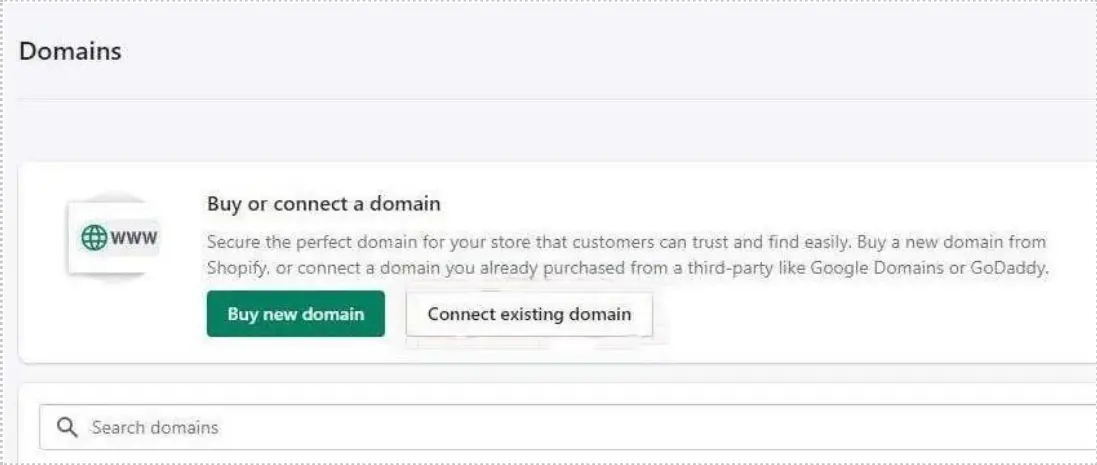
- You can purchase your domain directly from Shopify or a third-party provider such as Namecheap or GoDaddy.
- Then connect your domain, go to Online Store > Domains in Shopify, and link the domain that you purchased.
- For secure browsing, Shopify offers free SSL.
A Pro Tip: If possible, always use a “.com” domain for your site. It’s not only better for SEO but also customers trust it more.
9. Installing Essential Shopify Apps
Apps that are required for proper functioning or your store, install them from the Shopify App Store. Some recommended apps for beginners are:
- Spocket or DSers: Take care of dropshipping integration.
- Ominisend or Klaviyo: For SMS marketing and email marketing
- Judge.me: Product review collection to build trust
- Plug in SEO: Store optimization for search engines.
- ReConvert: Handles upselling and post-purchase offers.
A Pro Tip: Too many apps can slow down your website, so never go overboard with apps.
10. Thorough Testing & Launch
Right before launching your store, make sure everything works perfectly:
- To test your store, start by placing a test order using Shopify’s Bogus Gateway.
- Check store responsiveness on mobile, tablets, and desktops.
- Review the whole checkout process.
- Also, verify that order confirmation emails and other shipping updates are sent correctly.
- For tracking, connect Google Analytics and Facebook Pixel.
- At the end, remove password protection in Online Store > Preferences.
Your store is live!
A Pro Tip: First, do a soft launch to friends and family, collect their feedback, and then move towards full launch.
Instead of doing it yourself, you can get the benefits of hiring Shopify experts in the USA when you are a USA-based brand and take developers on board.
How Much Does It Cost to Build a Shopify Store in 2025?
It totally depends on your project goals, the type of brand you are running, and how much customization is required. Whether you are an established brand making an investment in a premium Shopify Plus website or a beginner launching your first Shopify store, here is the complete background:
1. Shopify Plans:
As per the different business requirements, Shopify pricing is tiered:
Basic Shopify plan
starts at $39 per month and is ideal for beginners or small brands. It includes essential features such as a basic checkout, sales channels, and unlimited products.
Shopify
plans start at $105/month and are superb for growing businesses. They also come with better shipping discounts, advanced reports, and more staff accounts.
Advanced Shopify
it starts at $399 per month and is ideal for scaling e-commerce brands that need advanced shipping, custom reports, and lower credit card fees.
Shopify Plus Plan
Starts at $2000/month. It’s an enterprise-level solution catering to high-volume businesses. Through this plan, businesses can leverage the top Shopify Plus features effectively.
2. Domain Name
Your Shopify brand looks professional with a custom brand name. From the Shopify platform, you can directly buy a domain for $10-$20 per year. It is also possible to buy a domain name for your store from third-party providers like GoDaddy or Namecheap.
Pro Tip: Pick a domain that is short, easy to spell, and memorable.
3. Theme Design
Your store theme controls the feel and looks of your brand. There are many free themes available on Shopify that you can select. Also, premium themes cost $200-$400, which is a one-time fee.
Pro Tip: If you are looking to level up your branding game, opting for a premium theme would be best.
4. Shopify Apps & Plugins
Shopify apps improve your store with features such as email marketing, SEO optimization, abandoned cart recovery, upselling, and dropshipping integration. There are many free apps like Shopify Inbox and Shopify Email that you can use. Moreover, paid premium tools such as Bold Upsell, Oberlo, or Klaviyo can cost $5-$50 per month.
5. Development & Customization Costs
Shopify completely understands that not every e-store owner is tech savvy. So, you may need help with customization, or you can hire Shopify developers. For small tweaks or customizations, you may have a freelancer on board for $500-$1500. For high-converting and fully customized stores, you can consult a reliable Shopify development agency for $2000-$5000.
How Long Does It Take to Set up A Shopify Store?
It can be surprisingly quick to set up a Shopify store. It usually depends on the level of customization your store may need:
- A Simple Store Set up: For a simple store with basic product listing, standard settings, and ready-made themes, you would take a few hours to a couple of days.
- Advanced one: For advanced level customization, features, complex product catalogs, or third-party app integrations, the complete launch may take a few weeks.
Some Common Mistakes to Avoid While Setting Up Your Shopify Store
Here we have listed some common blunders that you can avoid for a smooth development:
Avoiding Market Research
Many merchants rush into selling products without conducting market research. You may risk wasting money if you do not validate the market demand properly. To overcome this issue, use Shopify’s product research apps or tools like Google Trends before investment.
Uploading poor-quality product images
E-commerce is all about visuals and posting blurry or low-resolution product images destroys trust because shoppers always want to see products before buying them.
Overloading on Applications
Through apps, you can add features in your Shopify store but overloading them may increase cost and slow down your website. Always stick to essential apps.
Skipping SEO
Some retailers only rely on paid ads and skip SEO. However, organic traffic is free and sustainable in the long-term growth. To avoid this blunder, optimize product titles, URLs, and descriptions.
Ignoring Mobile Optimization
If a store looks great on desktops and on mobile phones, it will lose sales fast. You should always select a mobile-friendly theme.
Making the Checkout process more complicated
If your checkout process is long and complicated, it results in a high cart abandonment rate. You can simplify it by enabling guest checkout, offering multiple payment gateways such as Apple Pay, PayPal, and credit.
Not creating an Email List Early
Many startups don’t collect emails and rely totally on social media ads. However, in the e-commerce sector, email marketing has one of the highest ROIs.

Wrapping Up
Building a Shopify store is easier than ever before in 2025; however, success relies on careful and strategic planning and execution. By understanding the real pricing and timeline, and avoiding the common blunders, you can set up a highly converting and professional Shopify store. Shopify’s flexibility is top-notch. This platform grows with you, whether you are scaling your existing brand into a full-fledged store or planning to start with a small one, no matter what.